Every rental, crystal clear
See what each rental home really earns, costs and is worth. Add a payment once and every screen updates, so you grow on facts, not guesswork.
Invitation only for now. Ask the person who invited you for access.

Scan with your phone's camera. The iPhone app is on its way to the App Store.
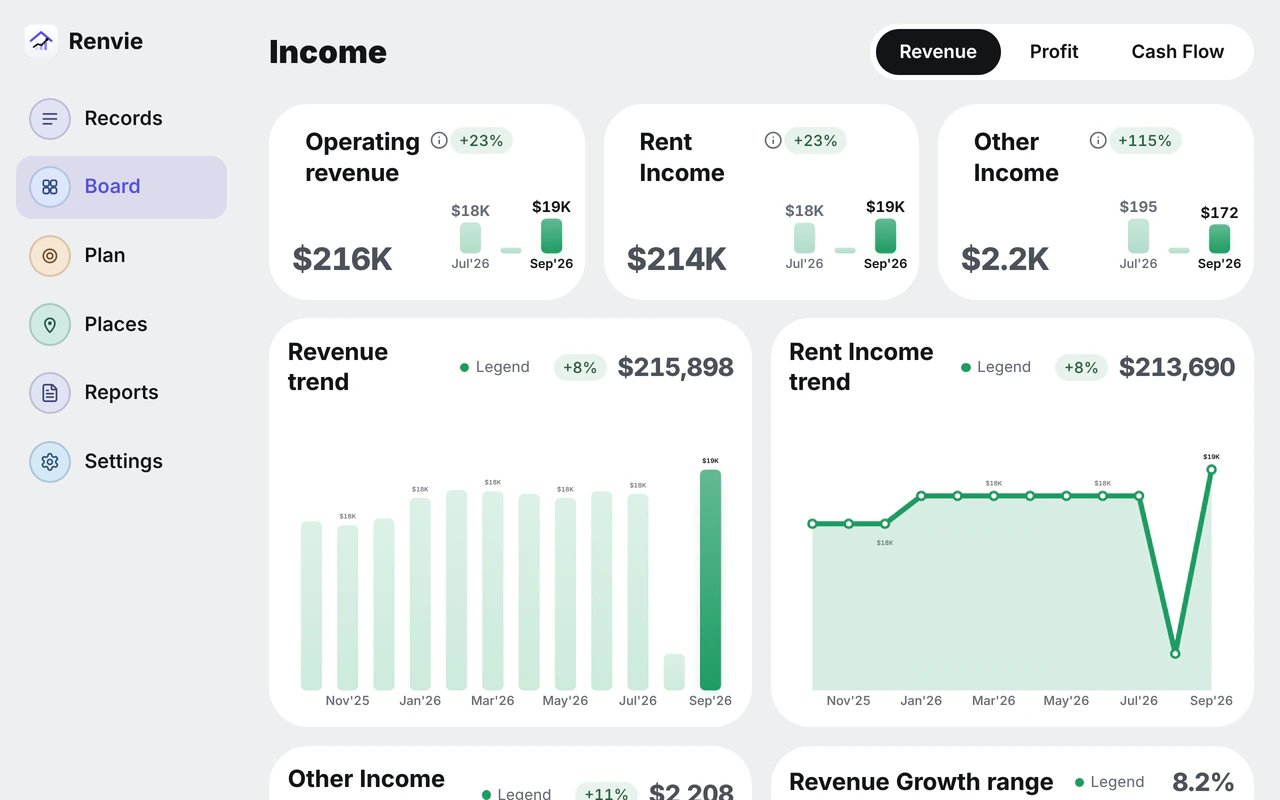
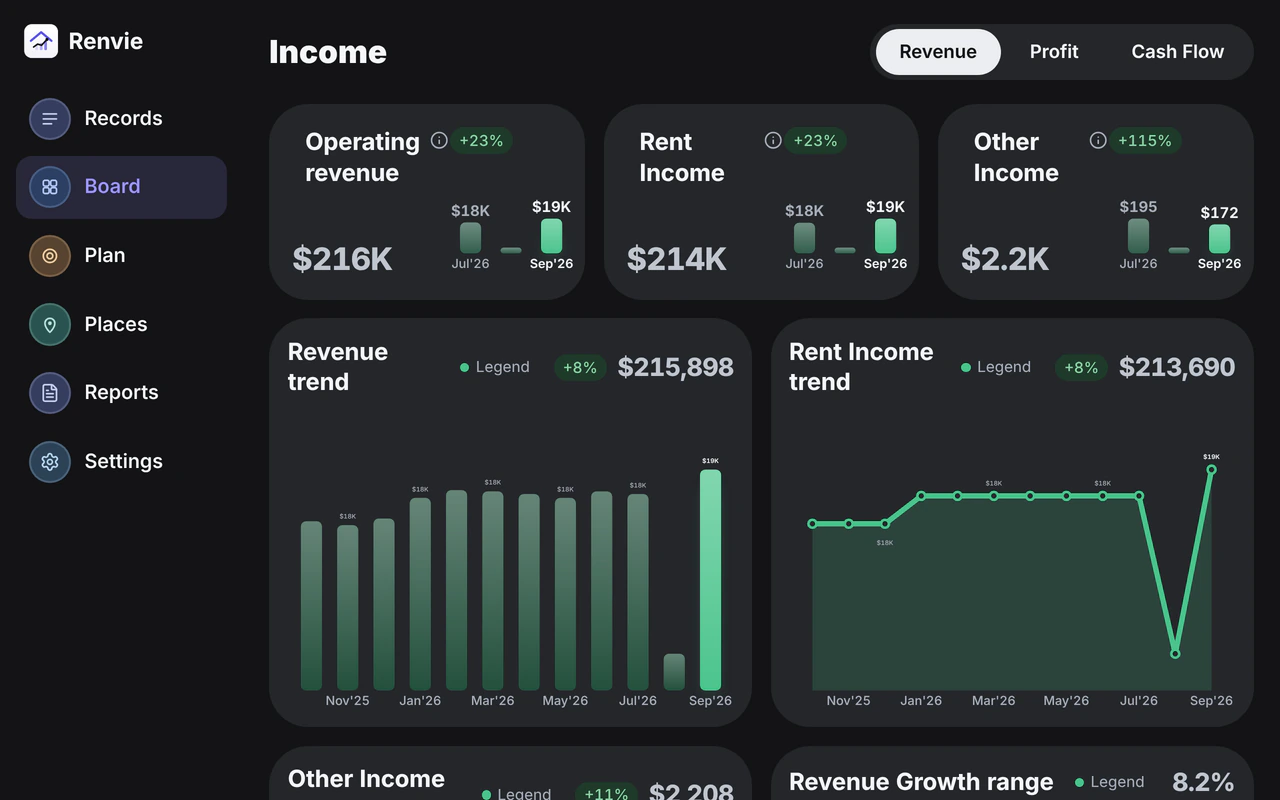
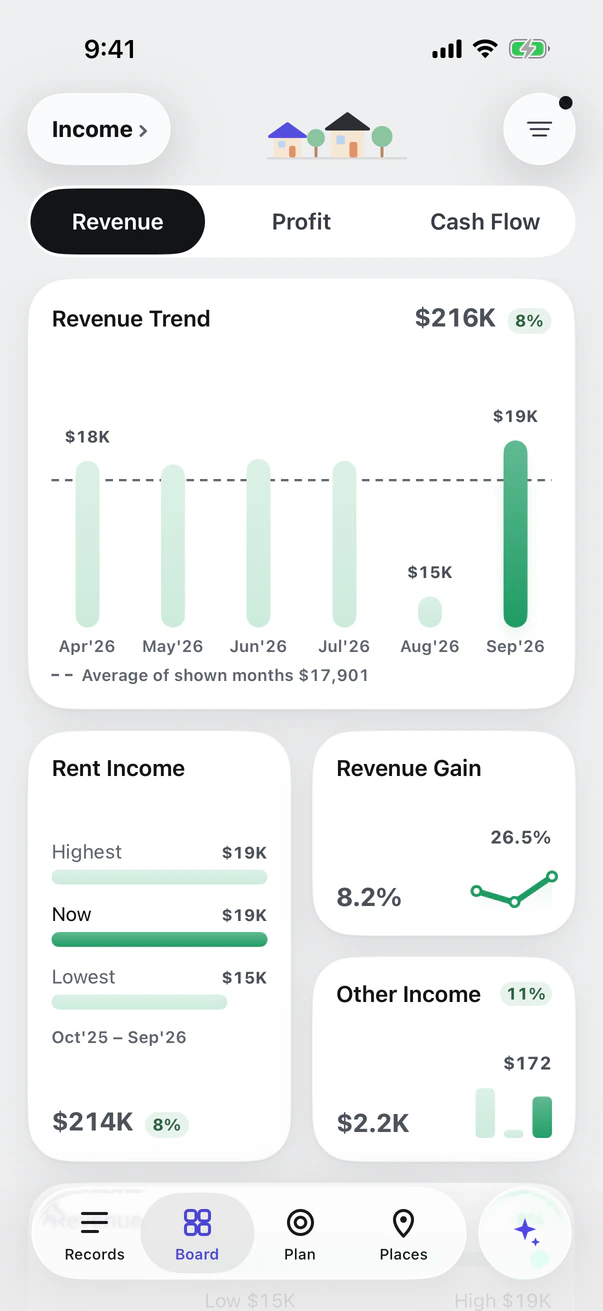
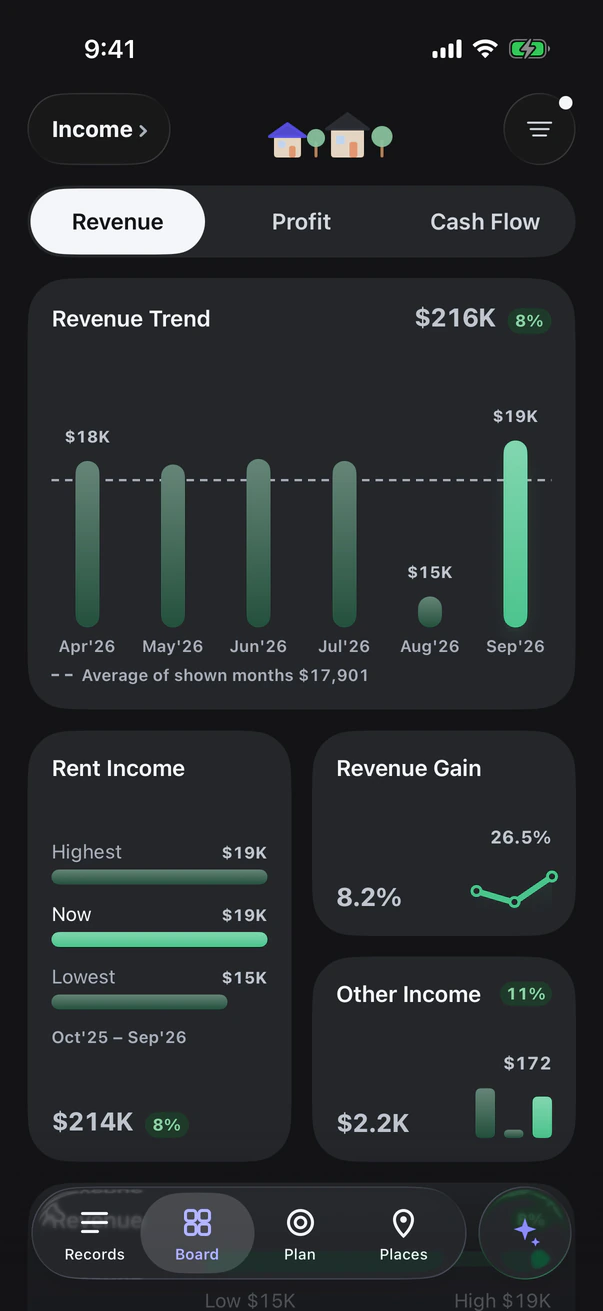
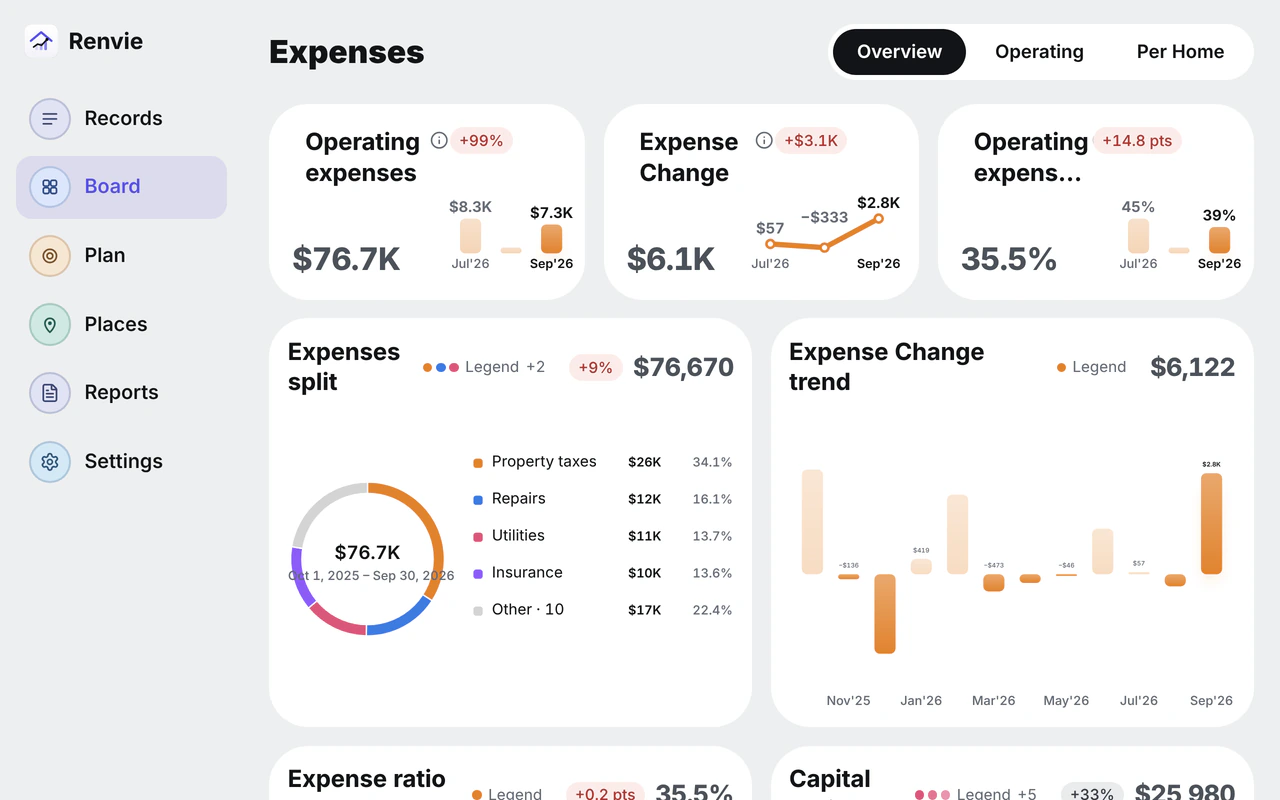
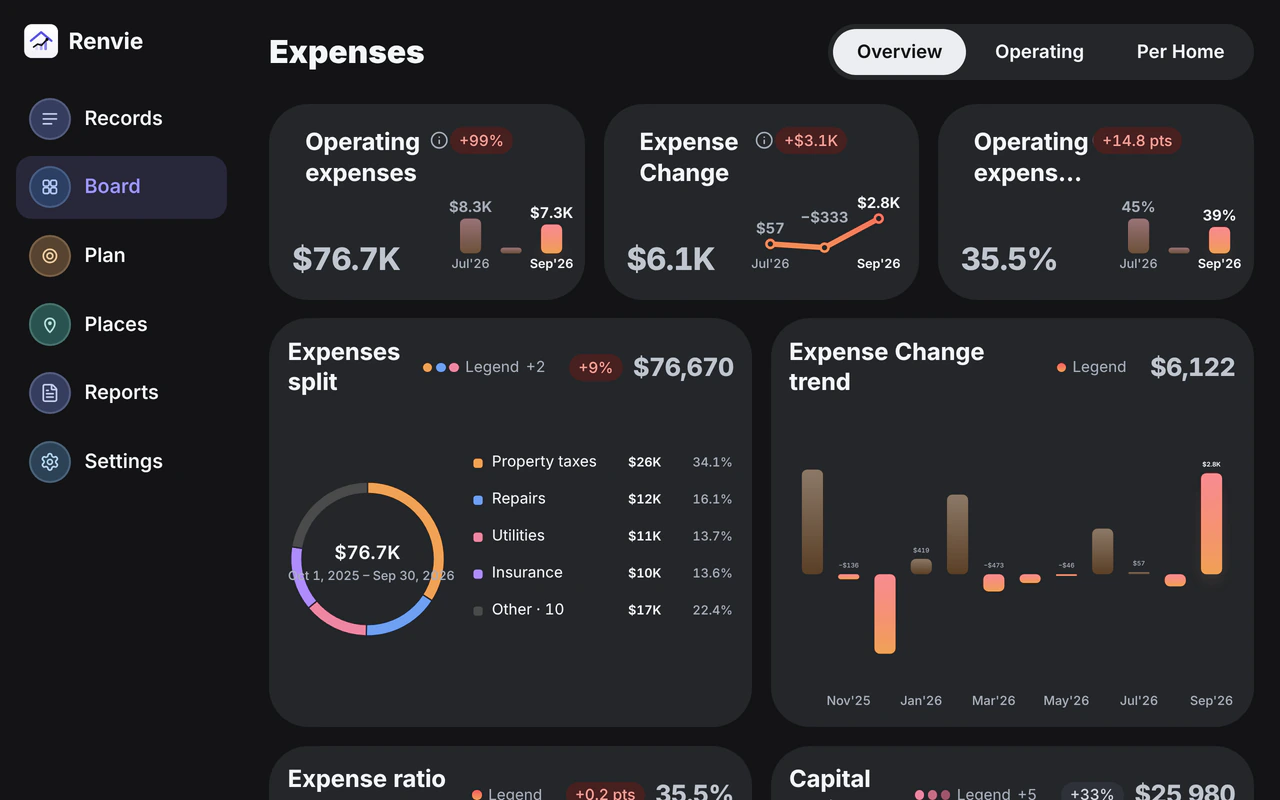
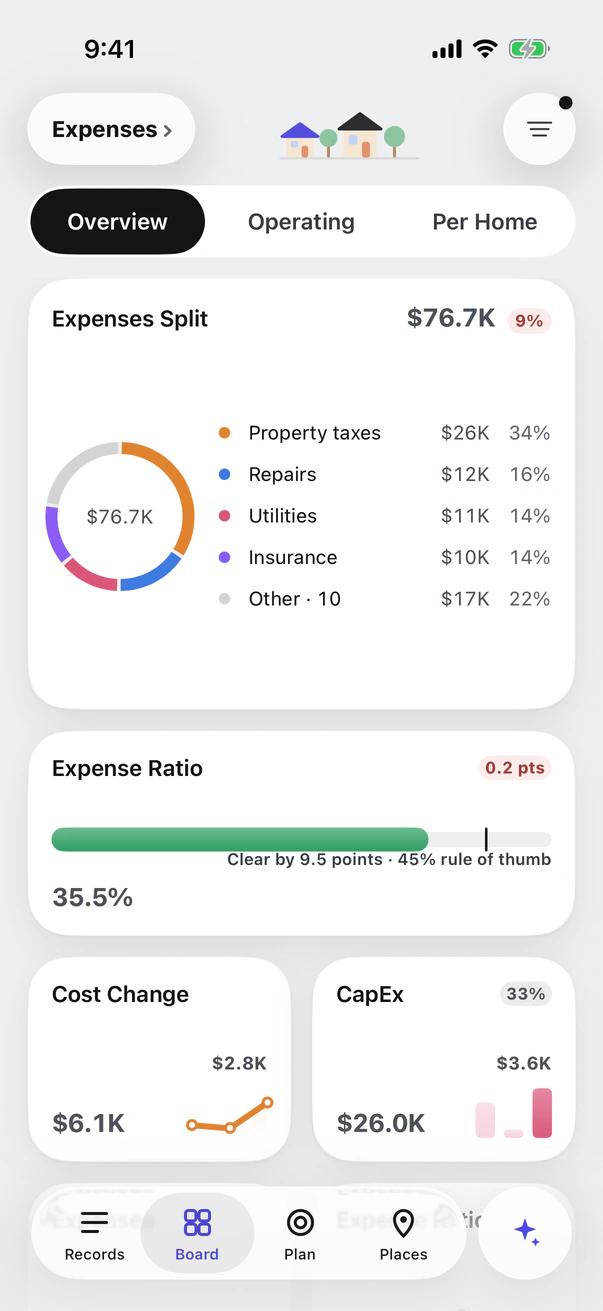
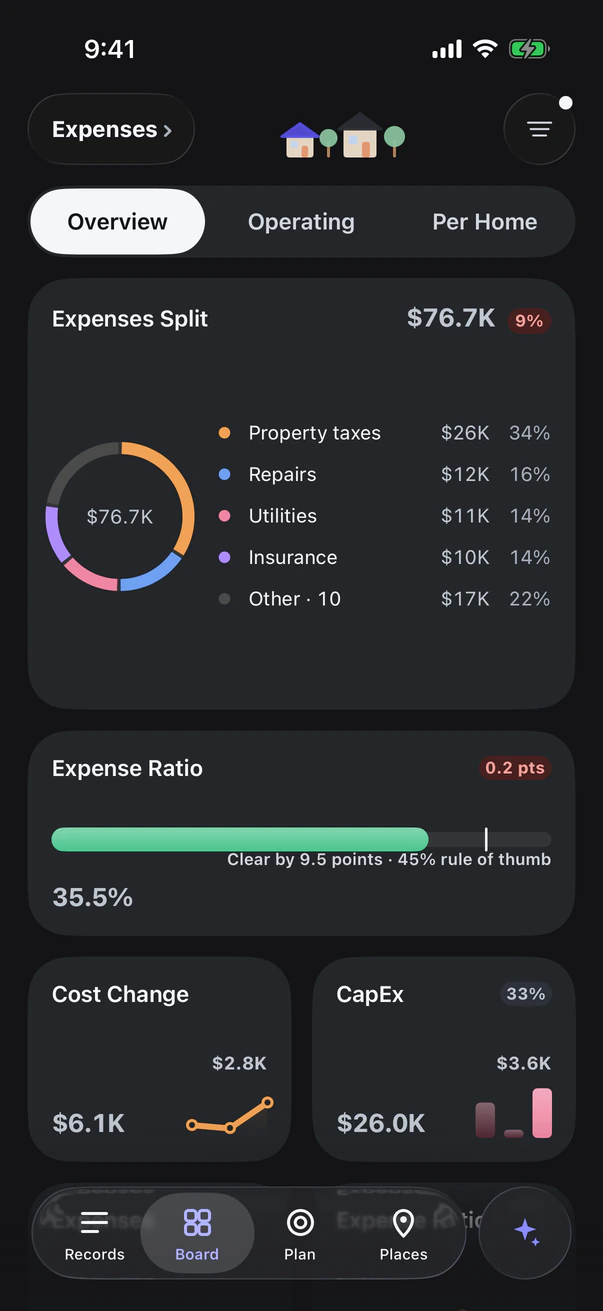
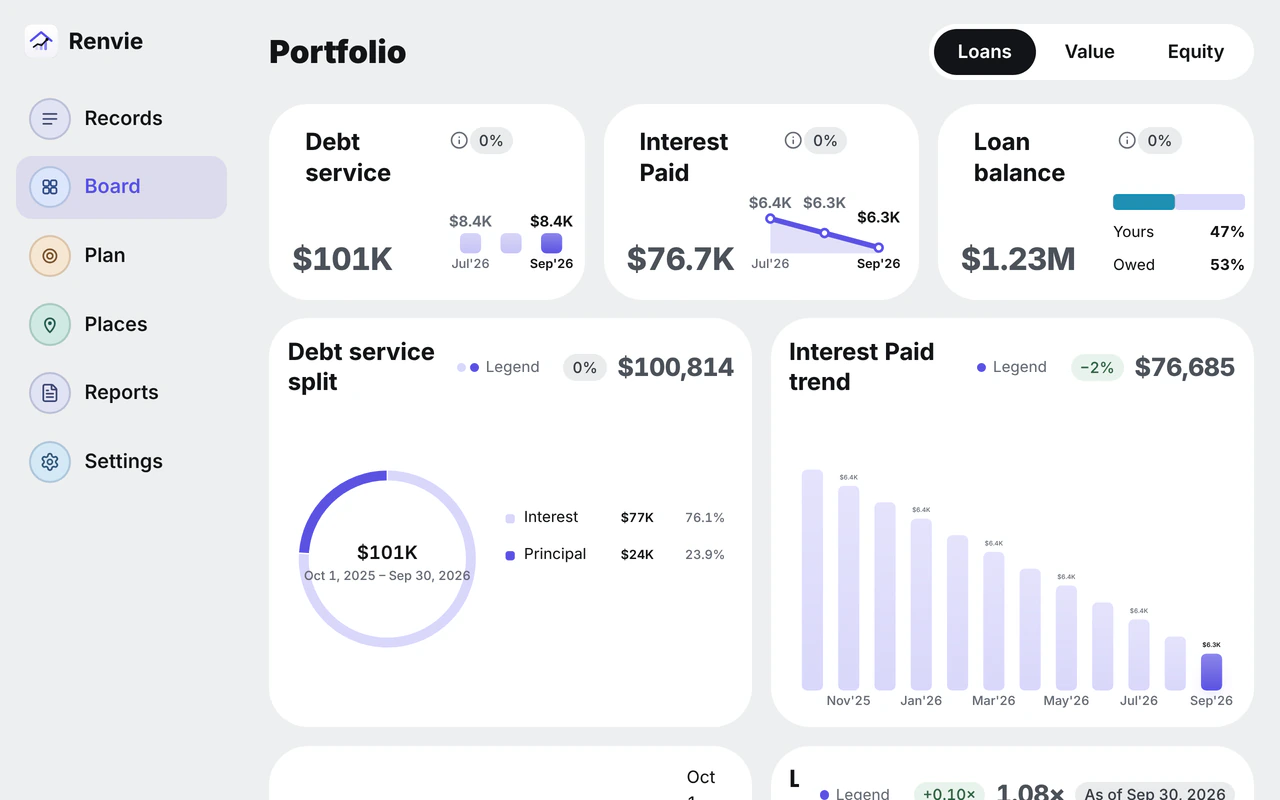
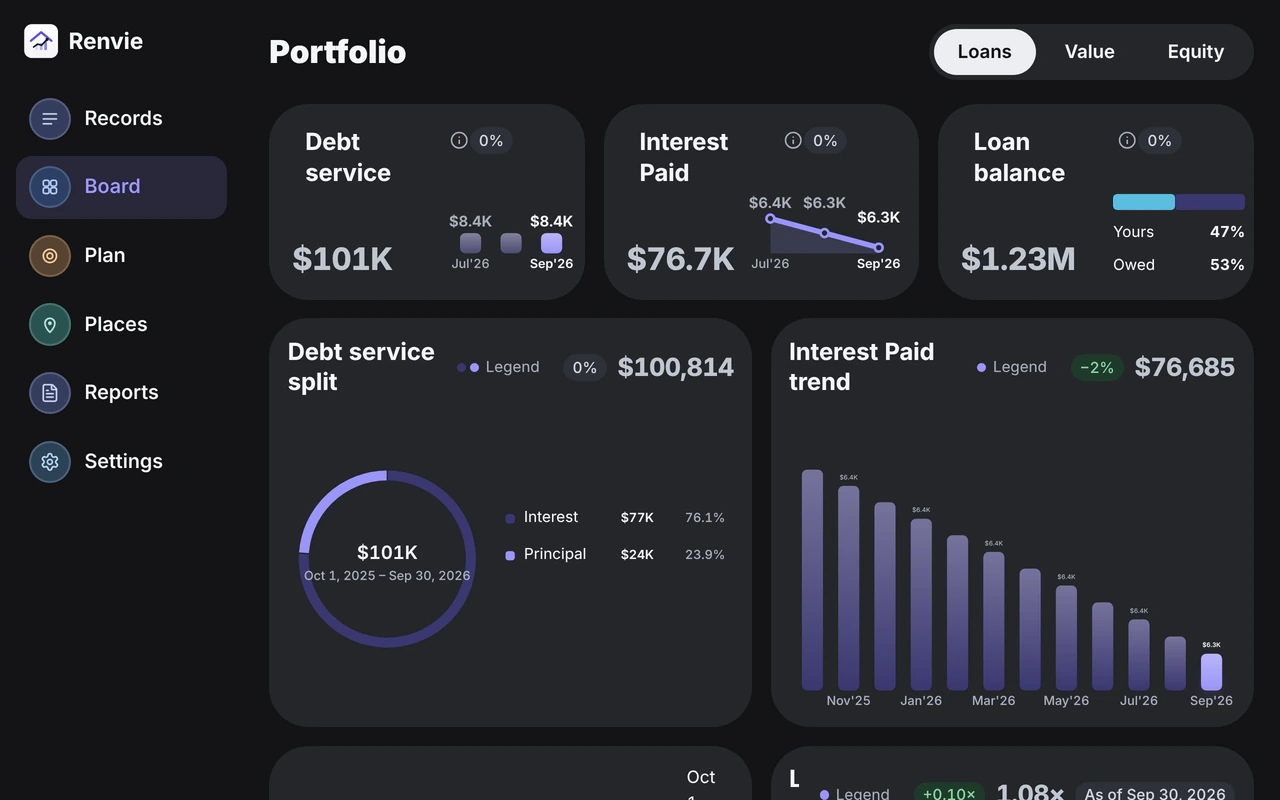
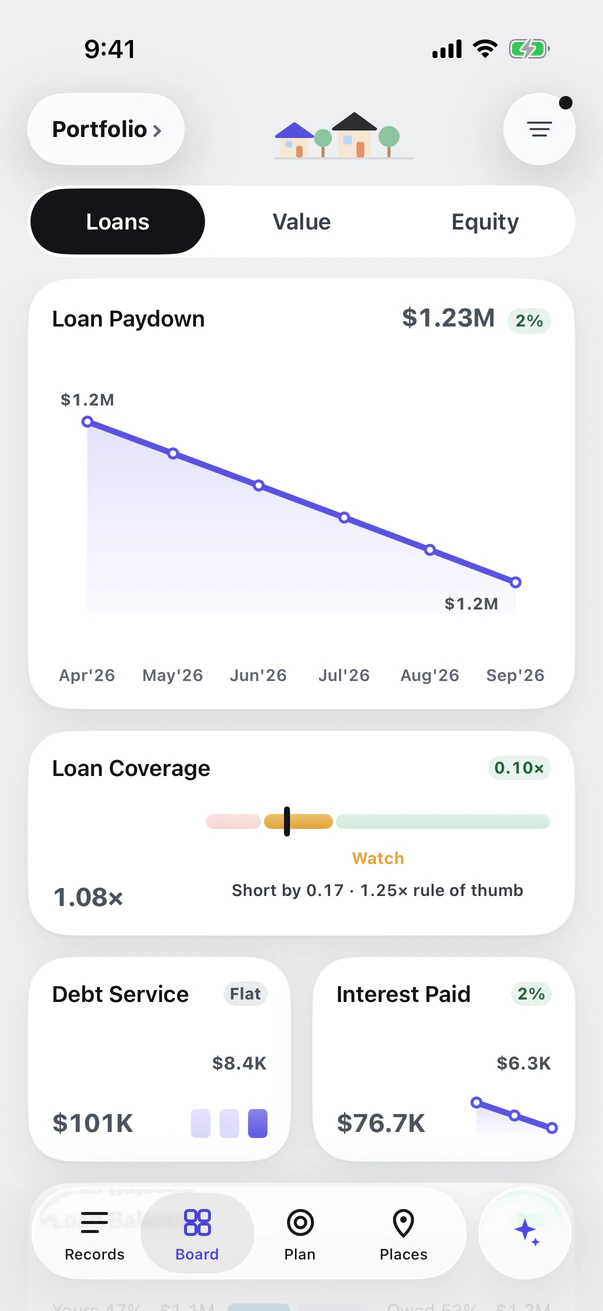
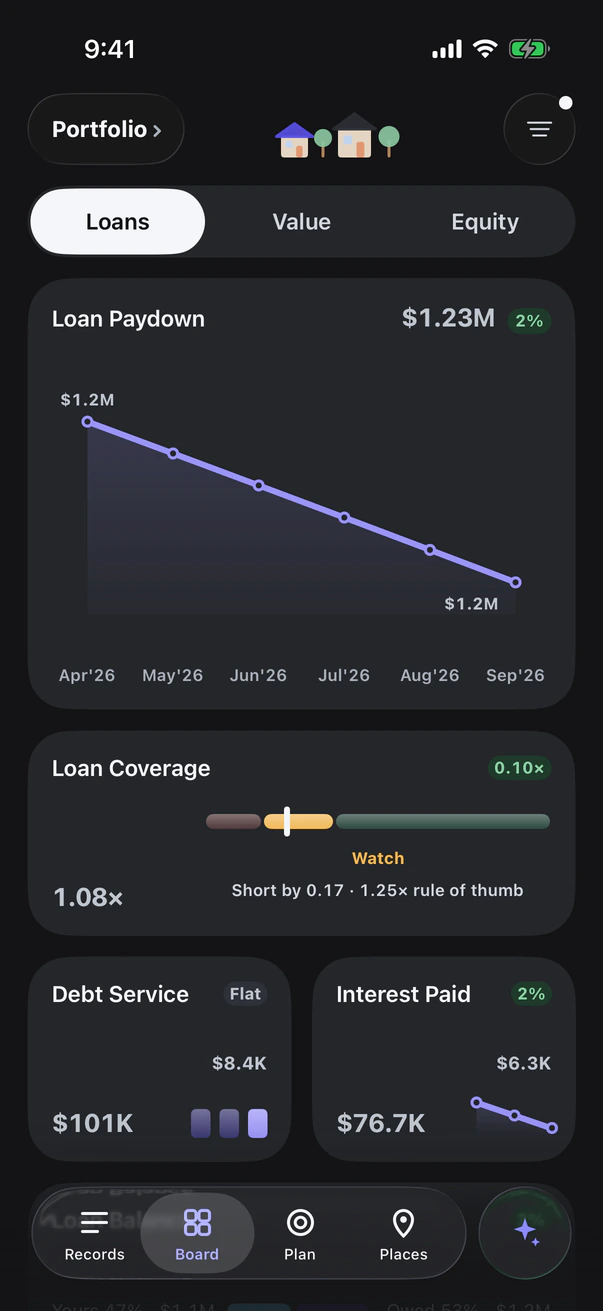
A made-up sample portfolio of six rental homes. Your own figures replace it.
Why Renvie
Growing a rental portfolio takes clear numbers
Most owners keep their records in three places and make big decisions from memory. Renvie brings them together, so every decision starts from the facts.
Your records, in one place
Rent in a bank app, repairs on receipts, loans in a spreadsheet.
Bring it in once. Each entry is filed on the right rental home and counted only once.
See which homes carry you
A good month can hide a weak rental.
Revenue, costs, cash flow and loan coverage for every home, each with how it changed.
Decide from your own numbers
Buying, refinancing or raising rent often starts from a guess.
The Plan tools start from your real rents and bills, and Renvie AI explains any figure in plain words.
Home
See what each rental really earns
Home turns every entry into simple cards and charts. No formulas, no setup.
- Three views. Income, Expenses and Portfolio, each with its own pages.
- The figure, the change and the trend. All on every card, so a change is plain at a glance.
- Filter and arrange. Filter by dates and by rental home, or arrange a view of your own.
Any card
Tap any number to see why
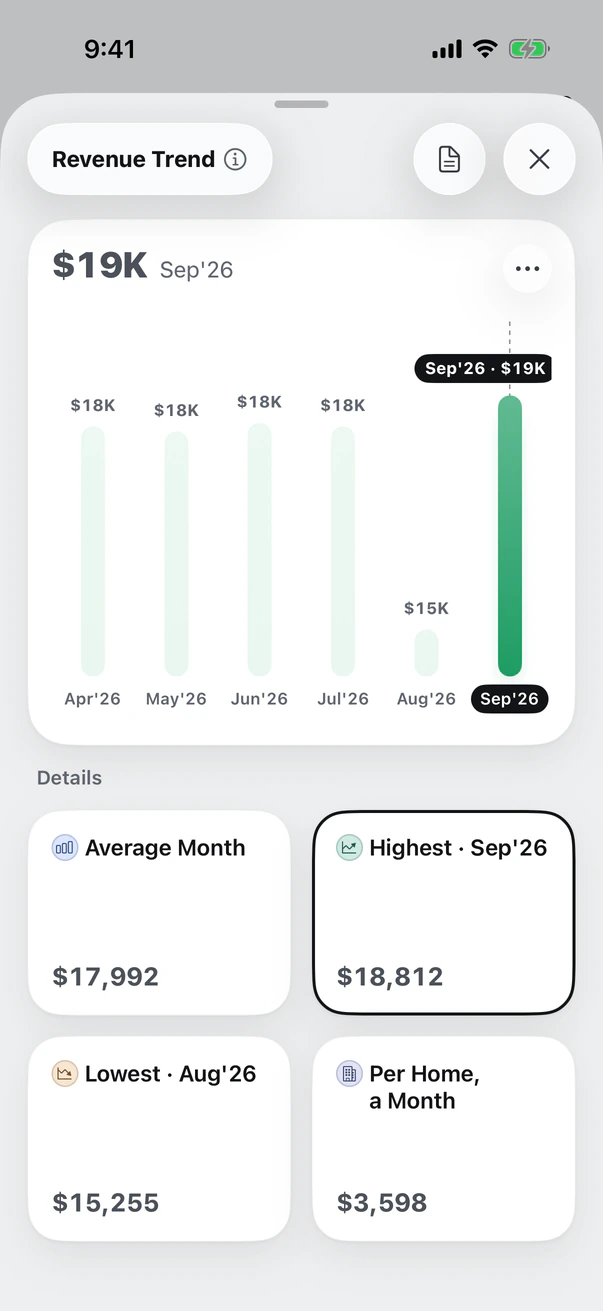
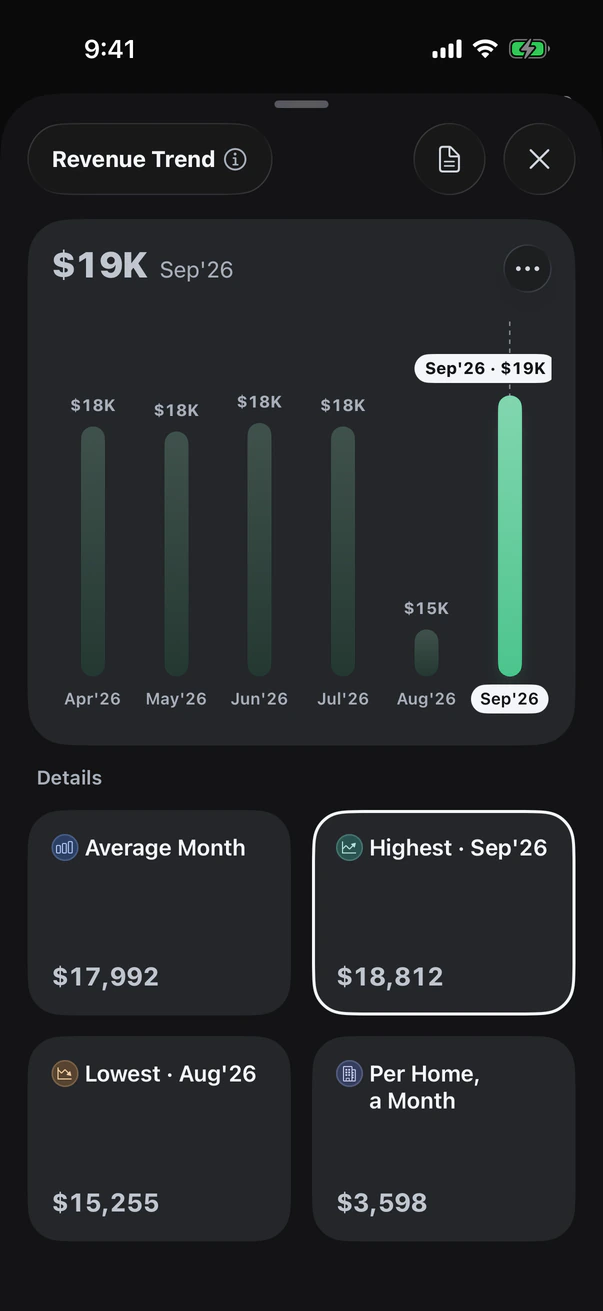
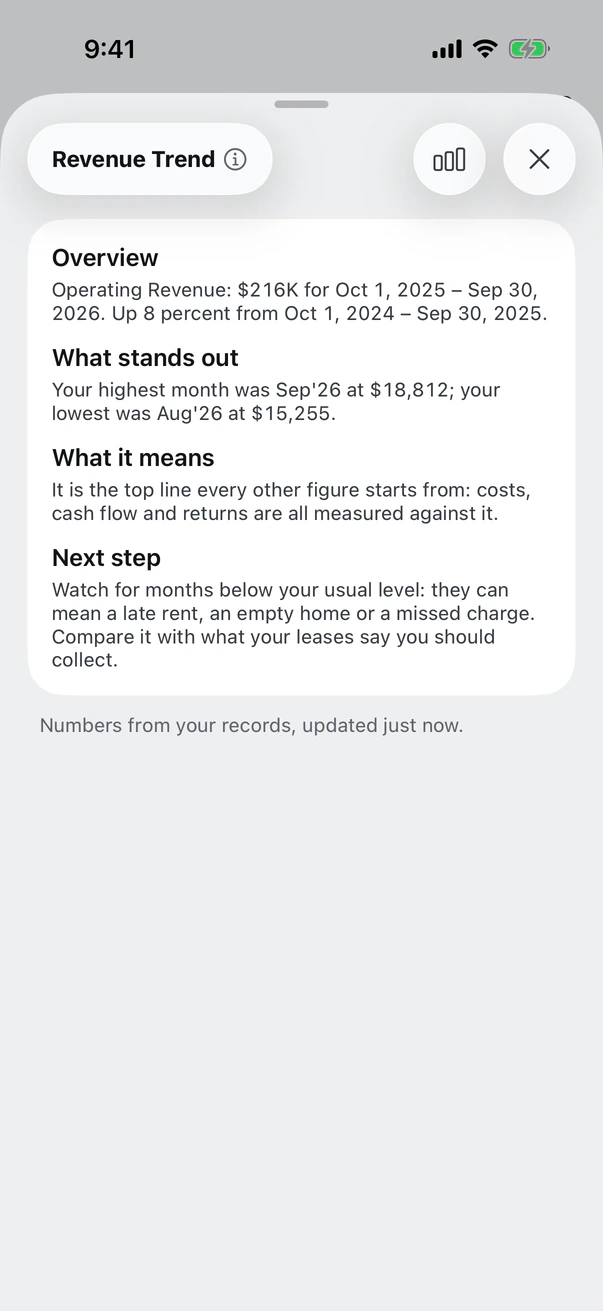
Open a card to see each month behind it, then read what it means in plain words.
- Tap a detail. Such as the highest month, and the chart points to it.
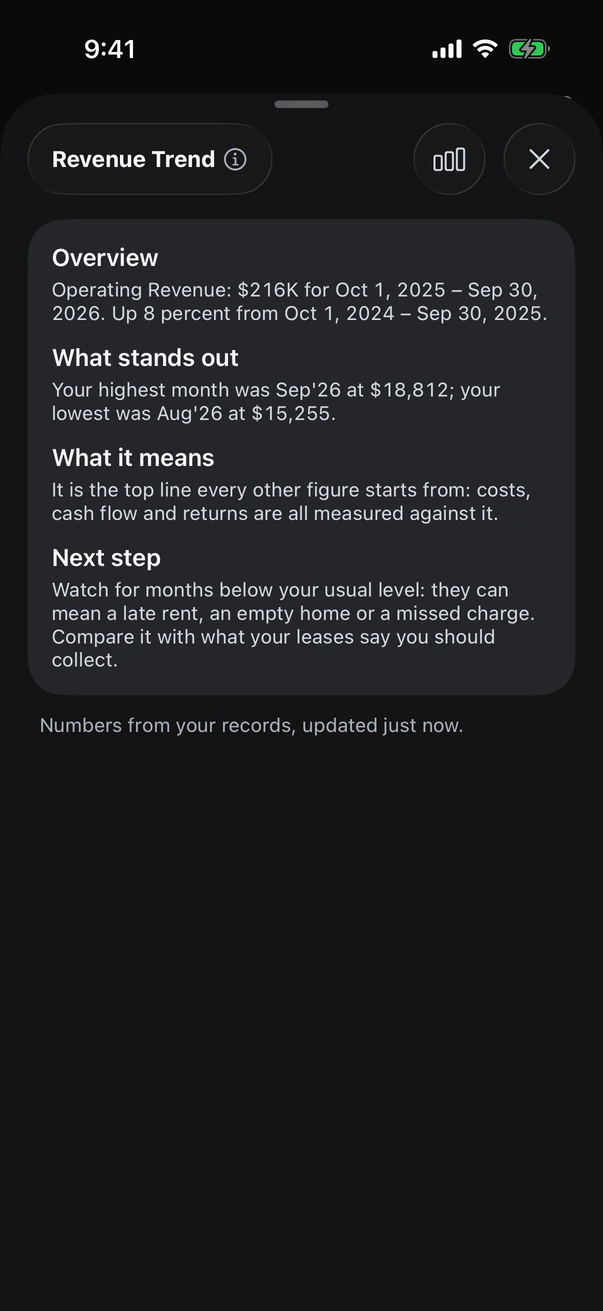
- A short report. What stands out, what it means and a next step to look at.
- Your chart, your way. Columns, a line or an area.
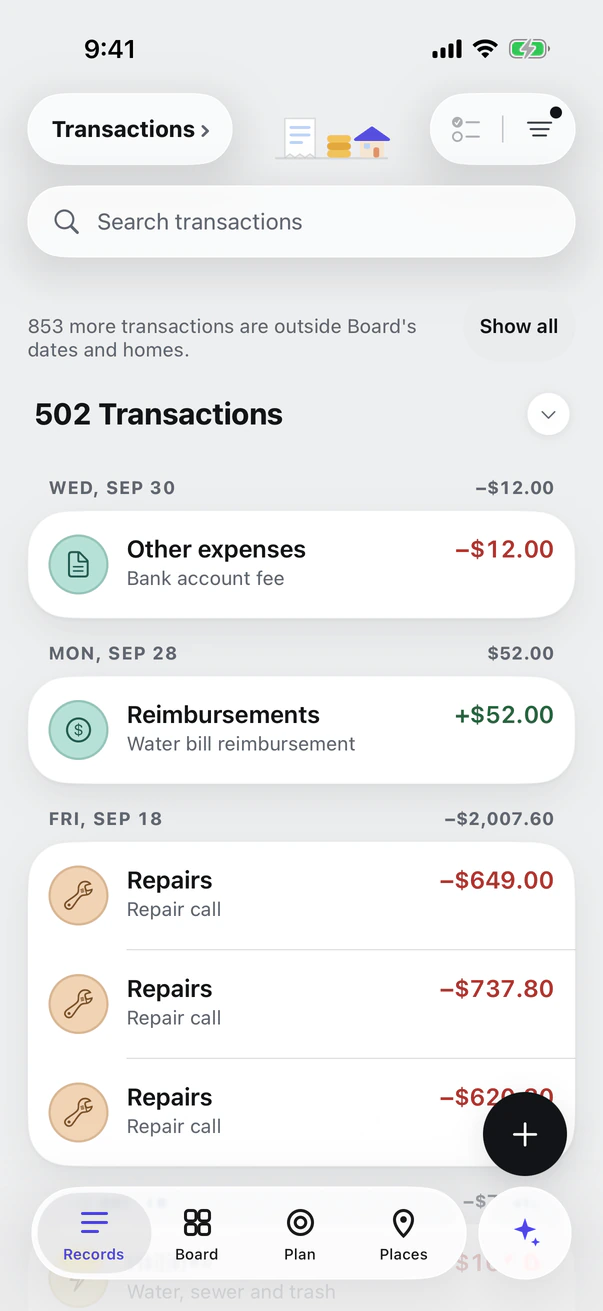
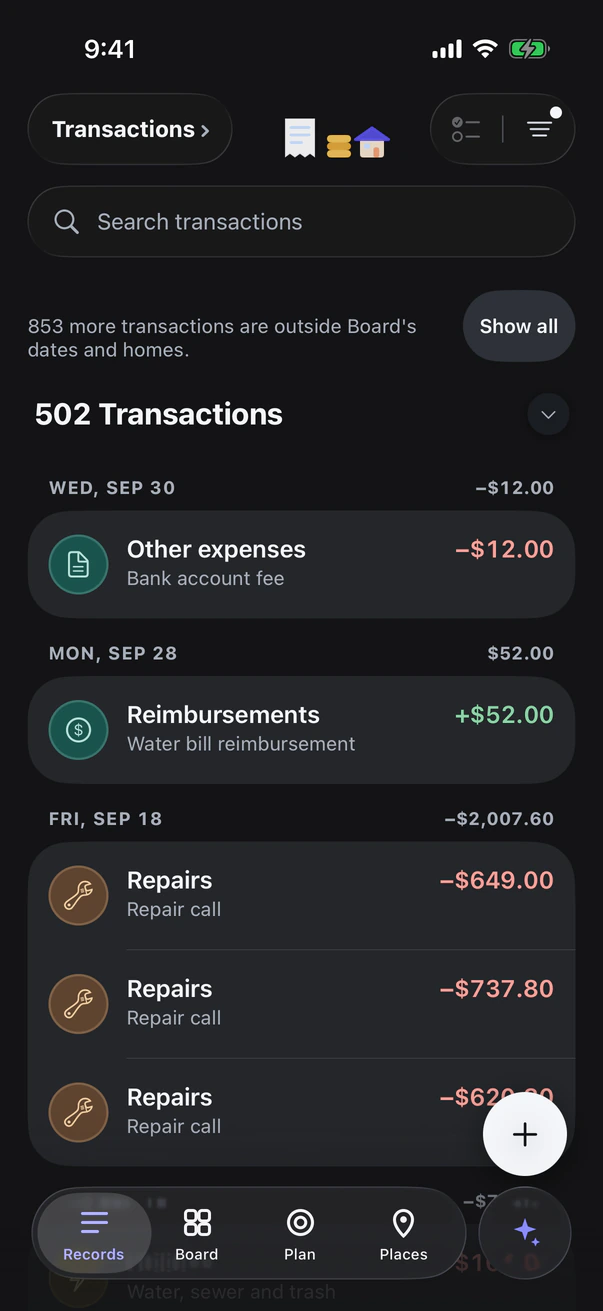
Transactions
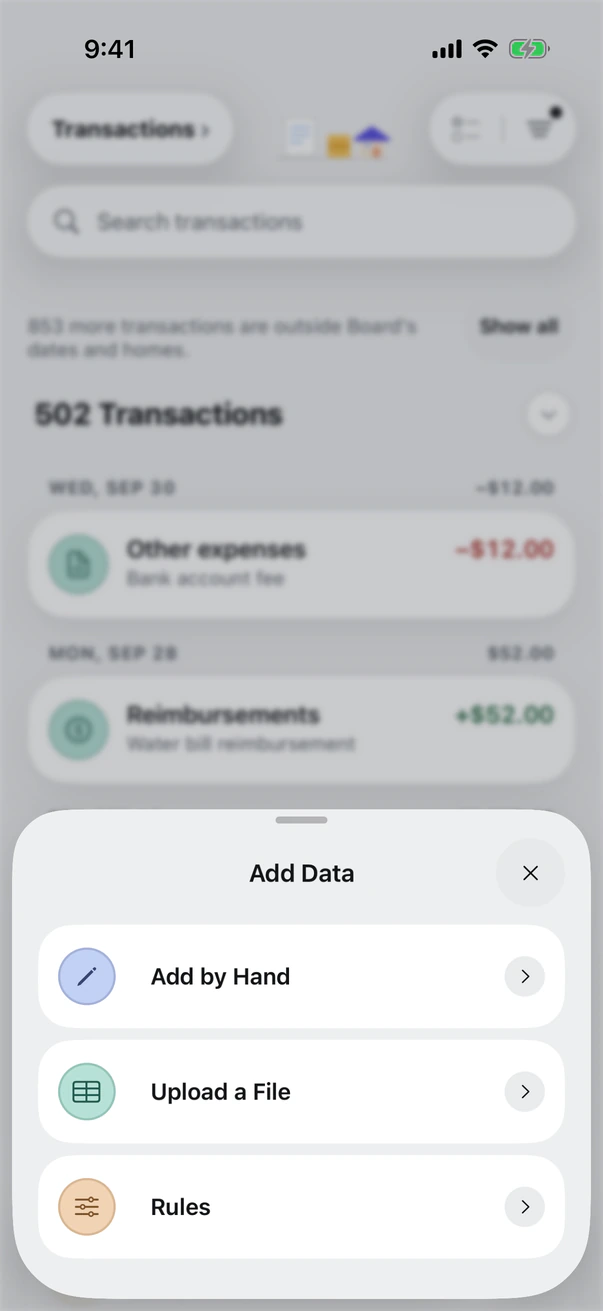
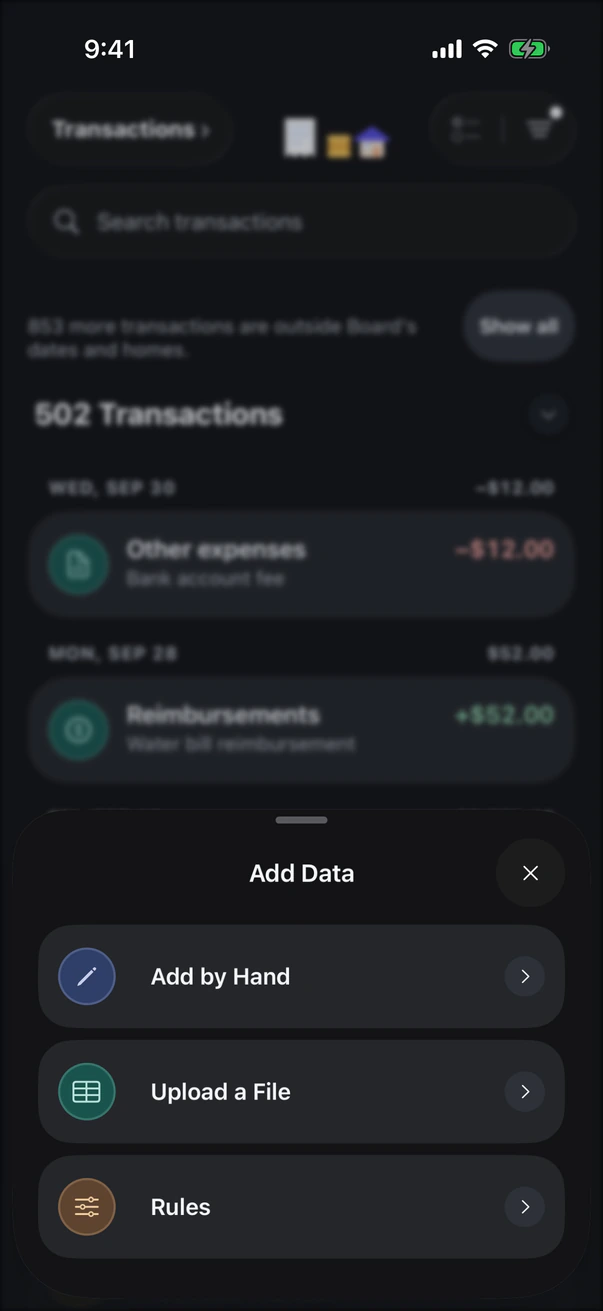
Add records your way
Rent, repairs, receipts and loans in one list. Type it in, snap a receipt or upload a file.
- By hand or by photo. Add a payment in seconds, or photograph a receipt. You check every field before it saves.
- Files. Excel and CSV in any layout, bank downloads, or a PDF bank statement.
- Nothing counted twice. Transactions already recorded are skipped, and rules sort new ones for you.
Plan
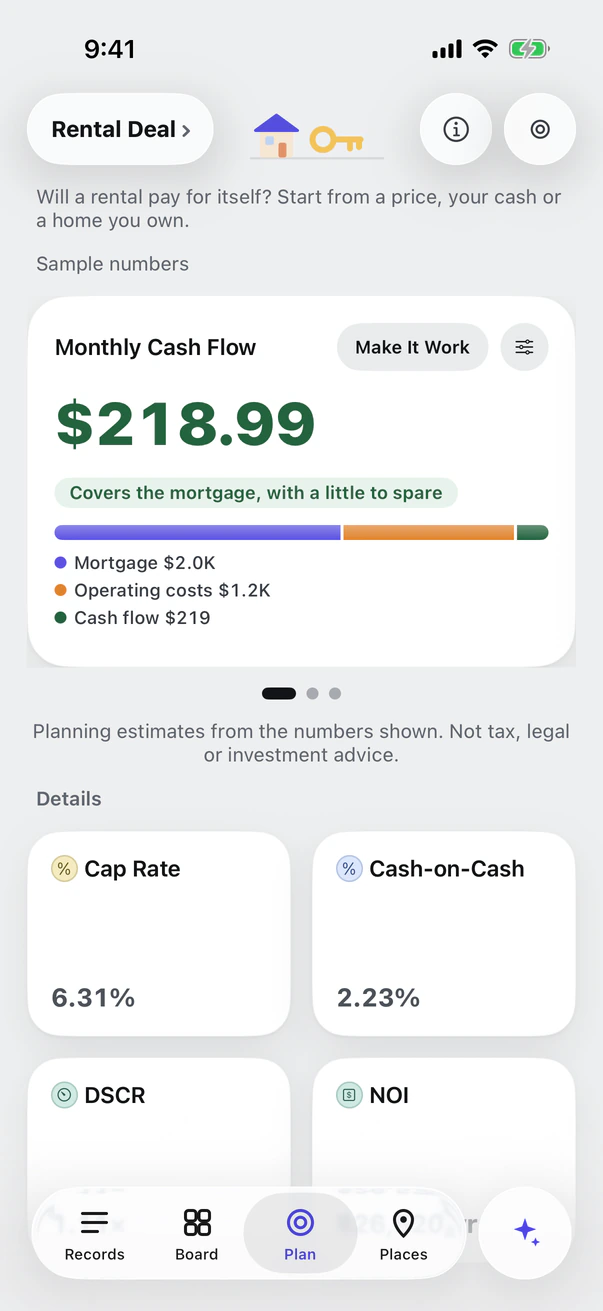
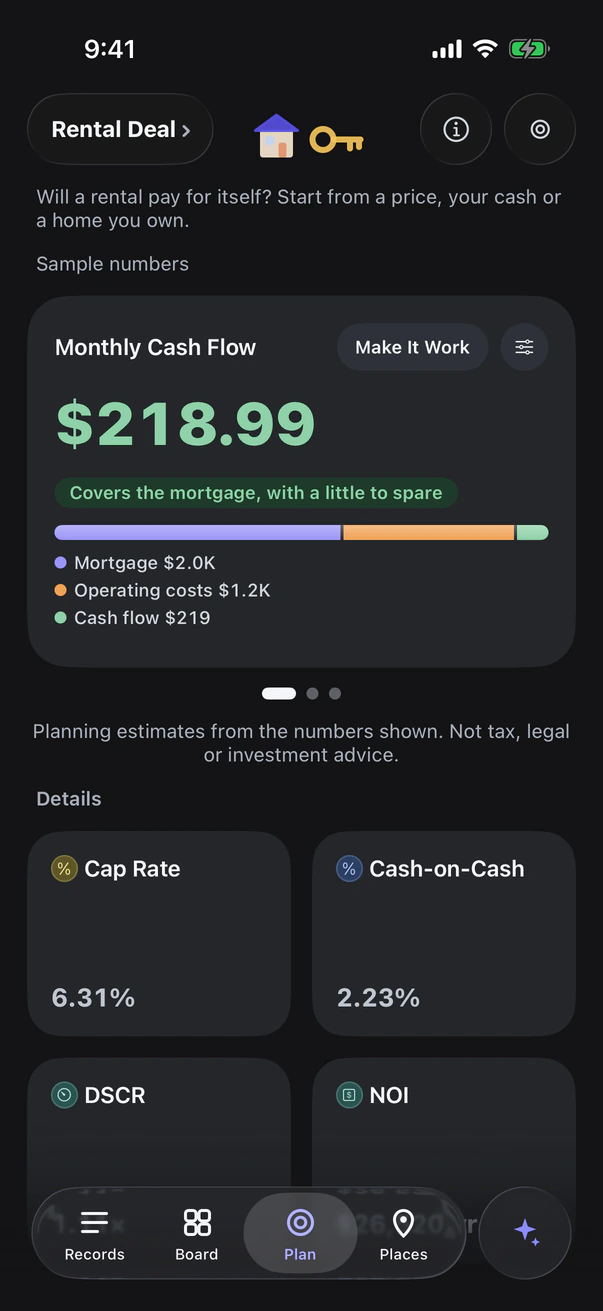
Plan with real numbers
Enter a price, a rent and your costs, or start from a home you own. See what it would earn each month.
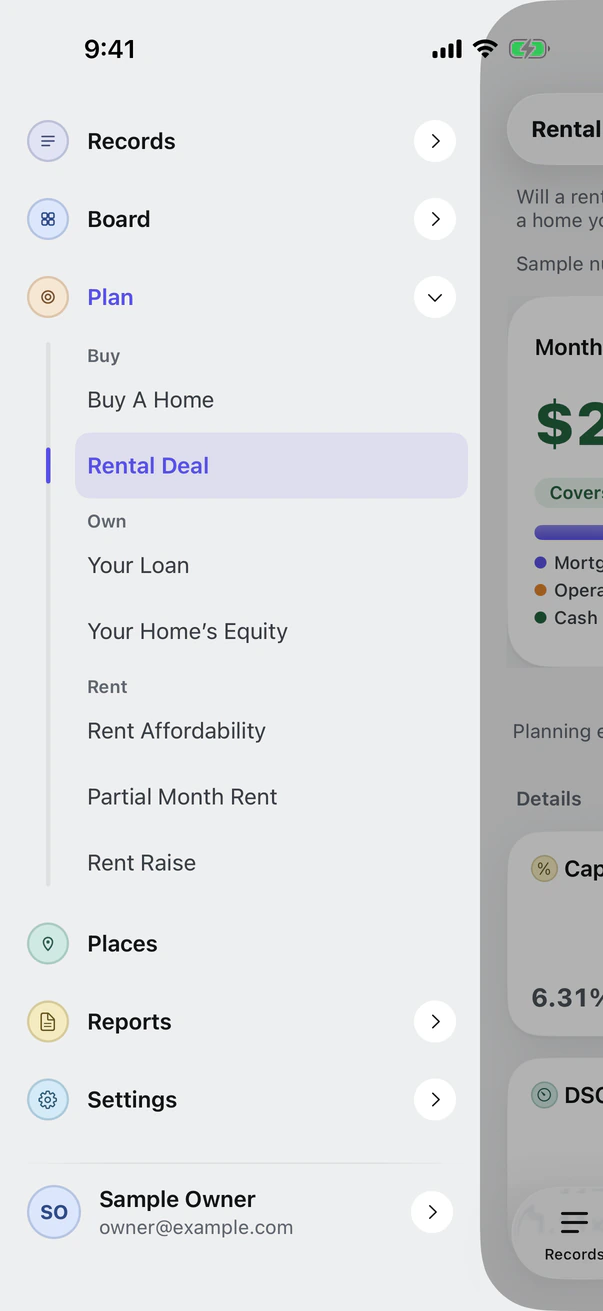
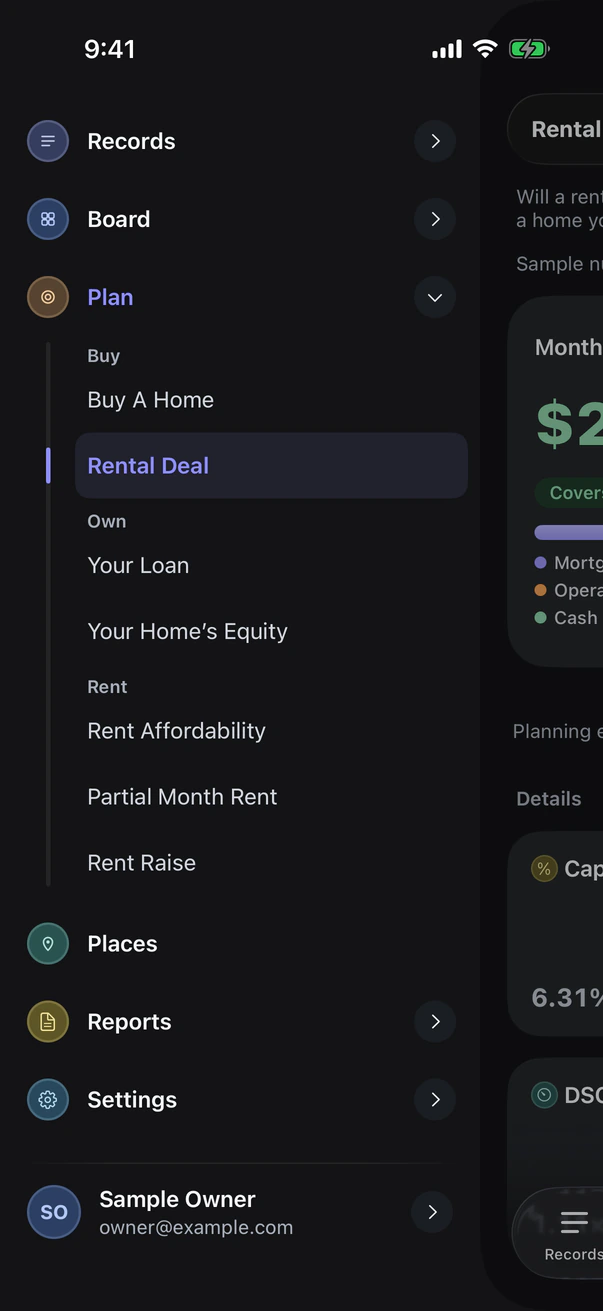
- Five tools. Buy a Home, Rental Deal, Your Loan, Your Home's Equity and Rent Affordability.
- Make It Work. Finds the number that reaches your goal.
- Your homes, your rents. Start from a saved home so the numbers fill in by themselves.
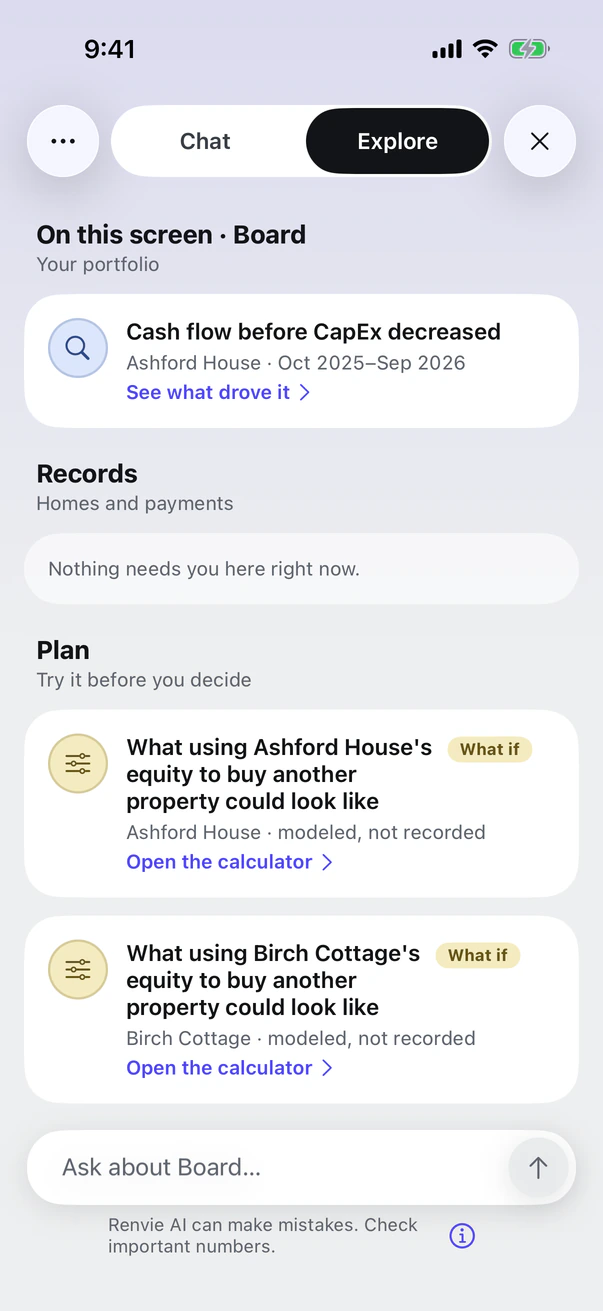
Renvie AI
Smart answers, in plain words
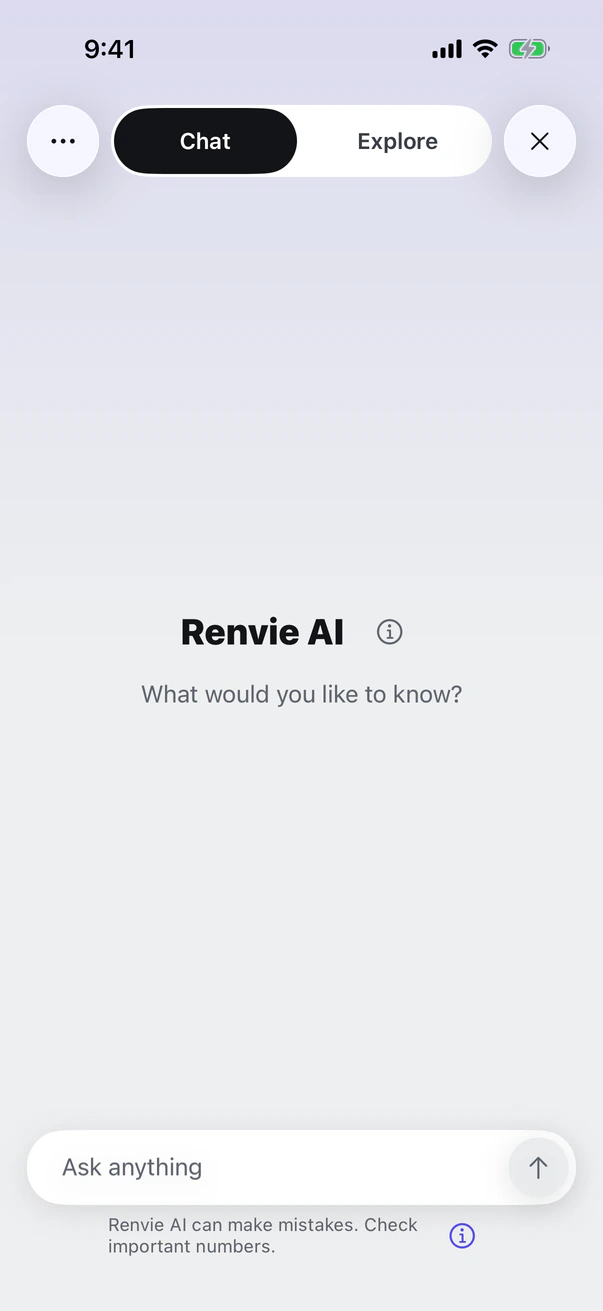
Ask about your own numbers like you would ask a friend, then ask a follow-up.
- Ask about anything. A figure, a transaction or a rental home.
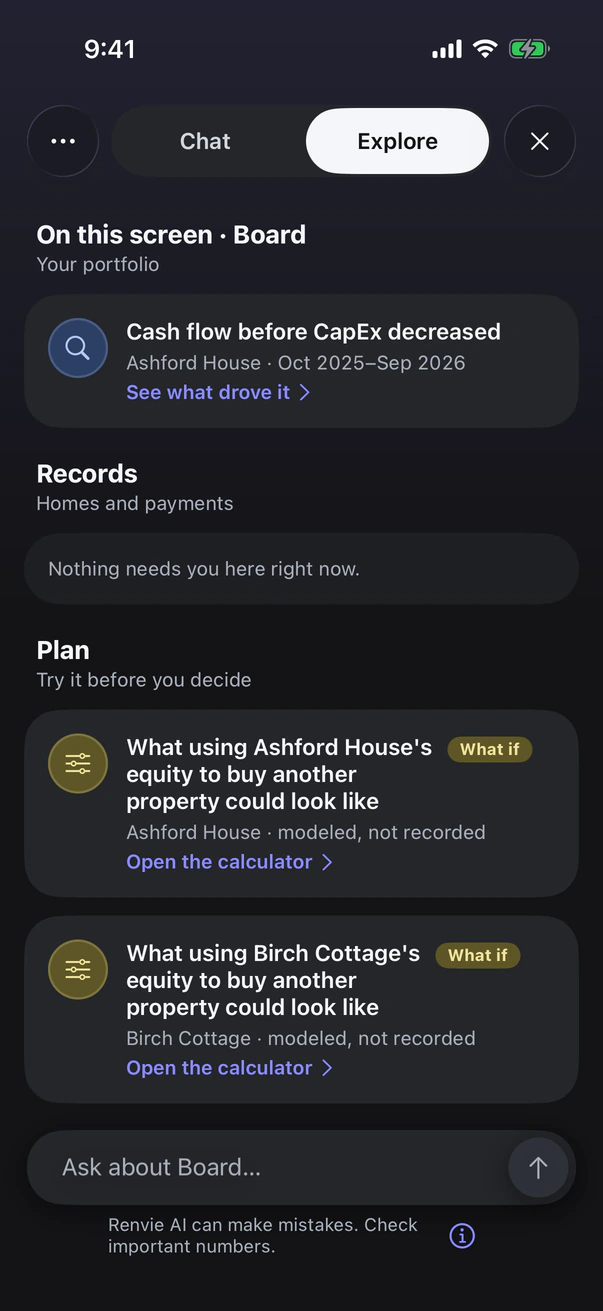
- Explore. Points out what is worth a look, such as a home whose cash flow fell.
- You stay in charge. It never changes your records on its own.
Renvie AI can make mistakes, so check important numbers. It explains your own numbers and shows options, for information only. It is not a financial, tax, legal, accounting, investment or real estate advisor, and nothing it says is advice. You decide, and for important decisions check with a qualified professional.
How it works
Everything, connected
Log it once. Renvie files it on the right rental home and every screen that uses it updates on its own. Nothing to copy, nothing counted twice.
Add what happened. See what changed. Plan the next move. Ask when you are unsure.
Privacy
Your data stays yours
Never sold, never used for ads
Your records are private to your account. No advertising cookies or tracking pixels.
Encrypted when stored and sent
The website and the iPhone app talk to Renvie over a secure connection, and stored data is encrypted by our hosting provider.
Delete it any time
Delete everything from Settings whenever you like, and take a copy of your transactions, homes and loans with you when you close your account.
When you ask Renvie AI a question, the figures and rows it needs go to the outside AI service that writes the reply. Read the Privacy notice and the Renvie AI disclosure.
Questions
Good to know
What files can I upload?
Excel (.xlsx) or CSV with a date and an amount on each line, a rent grid by month, or a profit-and-loss sheet. Renvie finds the dates, amounts, properties and categories and adds them. It gives every transaction its best-guess category, marks anything it is unsure of as In review, and asks first only when it cannot tell.
Who can see my numbers?
Only you. Your records are private to your account and never shared with other accounts. To answer a question, the figures and transactions it needs go to the AI service that writes the reply. When you upload a file, the column names and a few sample values go to the same kind of service to suggest how to read it. Web lookups send only short search words, never your records.
Does it work on my phone?
Yes. Open Renvie in your phone's browser and it works like an app; you can add it to your Home Screen. Your records and answers are the same on your phone and your computer.
Does Renvie give financial advice?
No. Renvie explains your own figures and lets you try what-ifs, for information only. It is not a financial, tax, legal, accounting, investment or real estate advisor, and decisions stay with you. Renvie AI can make mistakes, so check important numbers.
Where do the figures come from?
Every figure is worked out from the transactions you added, exact to the cent. Open any metric to see the formula and the transactions behind it. The AI explains those checked figures; it does not invent them.
Can I delete my data?
Yes. Delete your data from Settings, then Data & privacy, at any time. If you delete your account, you are offered a copy of your transactions, property details and loans first.
How do I get access?
Renvie is invitation-only for now. Ask the person who invited you for access.
Every rental, crystal clear
Sign in with your invitation and add your first rental home.
The iPhone app is on its way to the App Store.